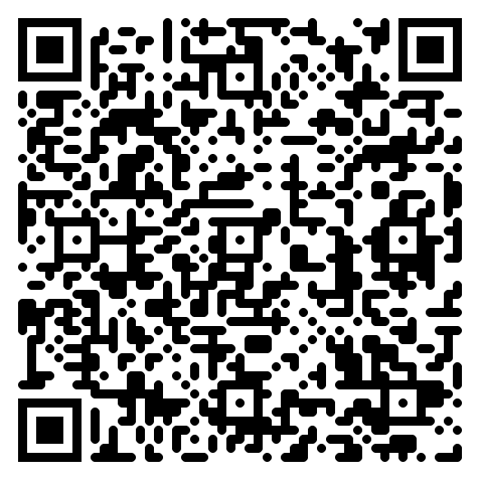
Why a vCard QR on your business card works
Paper cards get thrown out. A digital contact stays in their phonebook — long after the card itself is gone. Recipients save your details in one tap, with zero typing, which dramatically improves follow-up rates.
- Better retention — your contact lives in their phone forever.
- Update without reprinting — use a dynamic vCard service, or simply change the destination URL.
- Multilingual — works for international networking with no language barrier.
- All your links in one scan — LinkedIn, Twitter, portfolio site, all in the same vCard.
- Saves typing time — recipients add you instantly, which means a much higher follow-up rate than handing over a paper card alone.
Generate yours in 6 steps
Open the vCard QR generator
Open the vCard generator in your browser. No sign-up, no app — everything runs client-side.
Enter name, title, phone, email
Type your name, title, company, phone (with country code), and email. These five fields are the core of every business card vCard.
Add LinkedIn and website
Optionally add your LinkedIn URL, personal website, and physical address. Skip any field you don't need — fewer fields means a smaller, faster-scanning QR.
Keep the payload under 1 KB
Smaller payloads scan faster. Trim optional fields you don't need, and don't embed a photo — it inflates the QR significantly. Let LinkedIn provide your photo.
Download the PNG at 300 DPI
Generate and download the PNG at 300 DPI for print, or SVG for unlimited scaling. Minimum print size is 2×2 cm.
Place on the back of your card
Print on the back of your paper card with a clear caption: "Save my contact →". You can also use it as a sticker on your laptop, phone case, or conference lanyard.
Three business card QR templates
💼 Paper card back
Front: traditional design. Back: large QR with 'Save my contact →' text.
📧 Email signature QR
Below your sign-off — recipients save your contact from any email.
🪪 Conference lanyard QR
Hold up your badge, attendees scan to add you to their phonebook.
Best practices for business card QR codes
- Keep the vCard payload small — skip optional fields you don't need. Slow scans = abandoned scans.
- Use only essentials: name, role, email, phone, one URL.
- Print at 300 DPI minimum, with a minimum size of 2×2 cm.
- Test scan from 30 cm away with both an iPhone and an Android.
- Match your brand color but ensure 70% contrast minimum — light gray on white will fail.
- Reprint when you change phone or email — static QRs can't be edited.
Common mistakes to avoid
- Stuffing the vCard with unnecessary fields — slow generation, slow scans.
- Missing country code on phone — international scanners can't dial.
- QR printed in light gray on white — looks subtle, doesn't scan.
- Placing the QR over a glossy photo — light reflection ruins the scan.
Business card QR code FAQ
Does this work on both iPhone and Android?
Yes. The vCard format is universal — both iOS and Android camera apps recognize it natively and prompt to add the contact in one tap. No third-party app needed.
Can I update my contact without reprinting?
Only with a dynamic vCard service (paid). A static QR contains the contact data directly — change the data, regenerate, reprint. For frequent changes, use a service where the QR points to an editable URL.
Do recipients need an app?
No. The native phone camera scans and offers "Add Contact" in one tap. iOS 11+ and Android 10+ support this out of the box.
Can I add my LinkedIn URL?
Yes — it appears as a URL field in the saved contact card. Most address books display it as a clickable link.
Can I add my photo?
Yes, but it inflates the QR size dramatically. Better to leave it out and let LinkedIn provide the photo — a clean text-only vCard scans in under a second.
What about my company logo on the QR?
You can place a logo in the center if your QR has high error correction (level H). Test scan first — logos that are too large or too colorful can break scans.
Print quality — what DPI?
300 DPI minimum. Anything lower and laser printer artifacts can break the scan. For premium cards, use 600 DPI offset printing or vector SVG output.
Is this QR code generator really free, with no catch?
Yes — free forever. No sign-up, no watermark, no usage limits, no expiry. The entire generator runs in your browser, so we have no server costs to recover. No premium tier exists.
Will my QR code expire or stop working?
No. Static QR codes (which this site generates) never expire — they encode the destination directly into the image. The QR works as long as the URL or content it points to is still valid. Print once, scan forever.
Can I track how many people scan my QR code?
Not from the QR itself (static codes have no built-in analytics). The simplest workaround: add UTM parameters to your destination URL (e.g. ?utm_source=qr&utm_campaign=flyer) and read scans in Google Analytics, Plausible, or your site's log files.
What's the minimum print size for a QR code to scan reliably?
Rule of thumb: 2×2 cm (0.8") for cards and stickers, 5×5 cm for table tents and posters, 30×30 cm for billboards. The 1:10 ratio works: scan distance ≈ QR size × 10. Always test scan at actual size before printing a large batch.
Can I edit where the QR points after it's printed?
Not directly — static QR codes have the destination baked in. Workaround: point your QR to a short URL on your own domain (e.g. yourdomain.com/menu) that redirects to the real destination. You can change the redirect target any time without reprinting.
Related guides
From the blog
← Browse all For Business QR codes